
Have you been following our series on cool Pinterest tools? We’ve shared tools to help you schedule pins as well as set up alerts for when someone pins something from your site. So, do check those out.
The Pinterest tool that we’re sharing today is awesome simply because it lets you create beautiful pins and boards WITHOUT any editing needed.
Meet Pinstamatic, nifty tool designed to help you create pinnable images, instantly and without any editing or tech know-how.
What Makes Pinstamatic a Cool Pinterest Tool
It is FREE {yes, all the tools we’ve shared so far cost nothing!}
Its easy-to-use, even for non-tech folks. {read, me!}
You get neat pinnable images for quotes, photos and more in minutes.
How to Use Pinstamatic
Pinstamatic allows you the ability to create pins from your website or blog, your Twitter account, photos, Spotify as well as create pinnable quotes, location maps and important dates.
Here’s how to get started:
Go to Pinstamatic http://pinstamatic.com/
The icons at the top of the site’s homepage indicate the different types of pins you can create.
1. To pin your “Website”
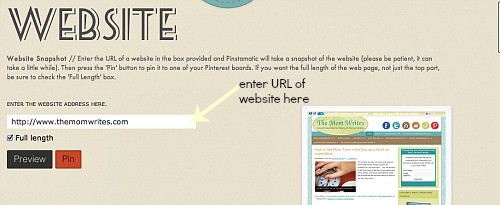
Simply enter your website URL and wait for the tool to do its magic. Click Pin and ta-dah, you’re done.
2. To pin a “Quote”
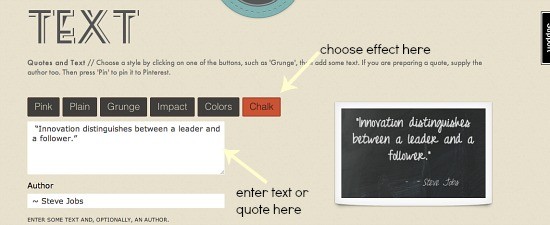
Enter the quote you’d like to use.
Choose a style.
Click ‘Pin’, and yep, you’re done!
3. To pin a “Sticky Note” style Pin
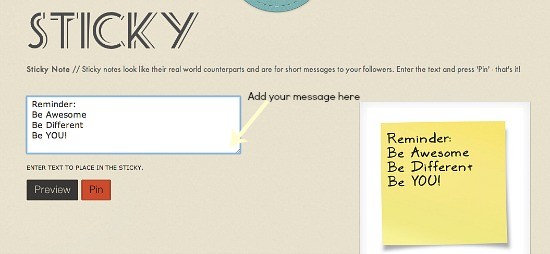
This one is great for sharing fun stuff or excerpts from your posts.
Enter your message.
Click ‘Pin’. That’s it.
4. To pin a “Spotify” track
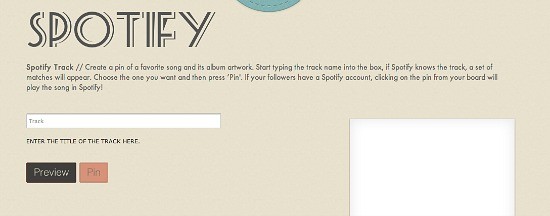
Idon’t have Spotify so couldn’t enter a track here, but again very intuitive. Just enter the track name and choose the name that matches.
Click ’Pin’
5. To pin your “Twitter profile”
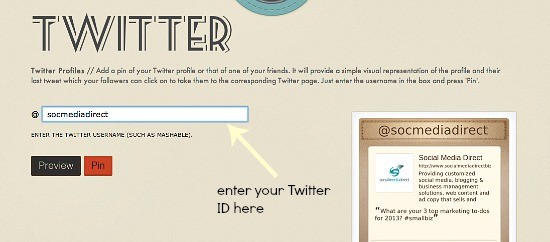
A graphic way of displaying your Twitter profile to your Pinterest followers.
Simply, enter your Twitter ID {not the link} with the @ sign.
Click ‘Pin’.
6. To pin a “Date”
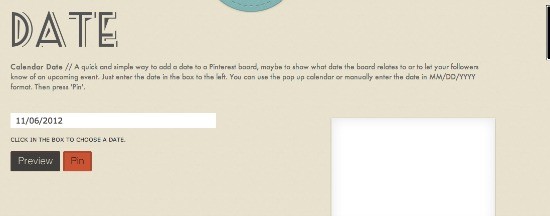
Want to let followers know about an important date, maybe a launch or an upcoming sale? Create a pinnable ‘date’.
Enter the date in the box.
Click ‘Pin’
In the description area, add why that date is important.
7. To pin a “Location or Place”
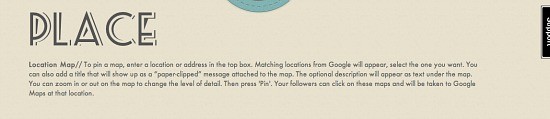
If you’re attending an important event, a conference or even, a fun coffee date, you can create a clickable map, complete with a message describing why that location is important.
To create it:
Enter the address
Add a Title
Enter a short description
Click ‘Pin’.
8. To create pinnable “Photos”
Finally, you can use this cool tool to caption or modify photos that you want to share on Pinterest.
To Filter:
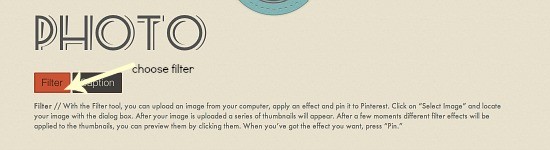
Choose Filter
Upload a photo
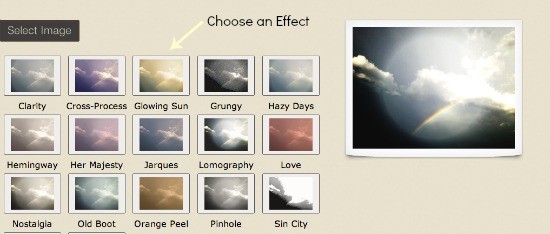
Choose an Effect. There are lots available.
Click ‘Pin’
To Caption:
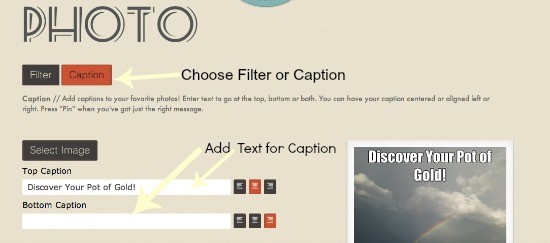
Upload a photo
Add a Caption, either to the top or bottom, or both, if you want!
Choose the caption alignment – left, right or center.
Click ‘Pin’
So, there you are 8 different pins created with one cool Pinterest tool.
What will YOU be creating first? Share with us in the comments!

Newsletter
Join founders and operators building calmer, more profitable sales systems
No spam. Just smart strategy that works.